 ZIPTEAMS × ZOOM
Integrate with Zoom
You can connect your Zoom account with Zipteams to get your users to schedule meetings on Zoom using our meeting scheduling widget. You also get meeting summaries and conversational analytics on Zoom meeting recordings.
Zipteams app is available on Zoom marketplace. You can use the below steps to connect your Zoom account with Zipteams.
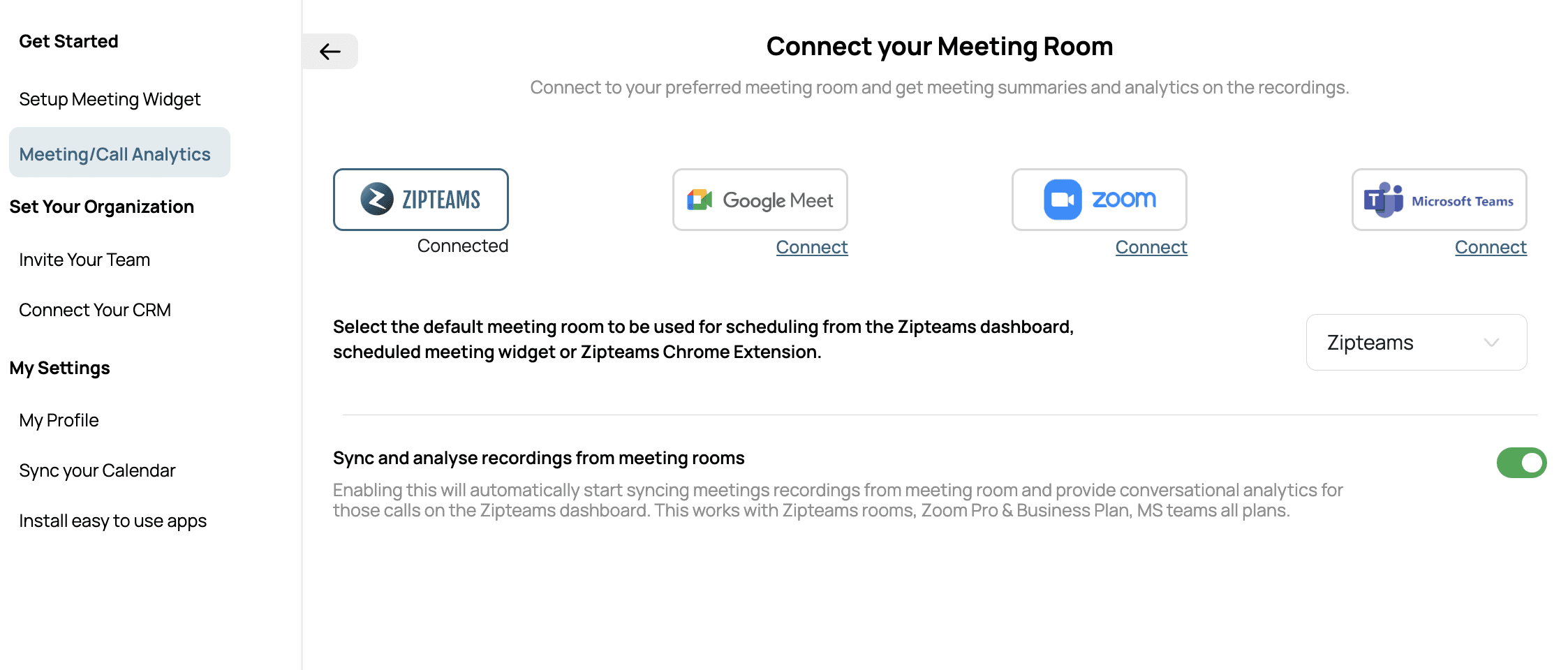
How to connect your Zoom account on Zipteams?
Signin to your Zipteams account on app.zipteams.com
Go to Setup > Meeting/Call Analytics > Connect Meeting Room
Click on “Connect” on Zoom
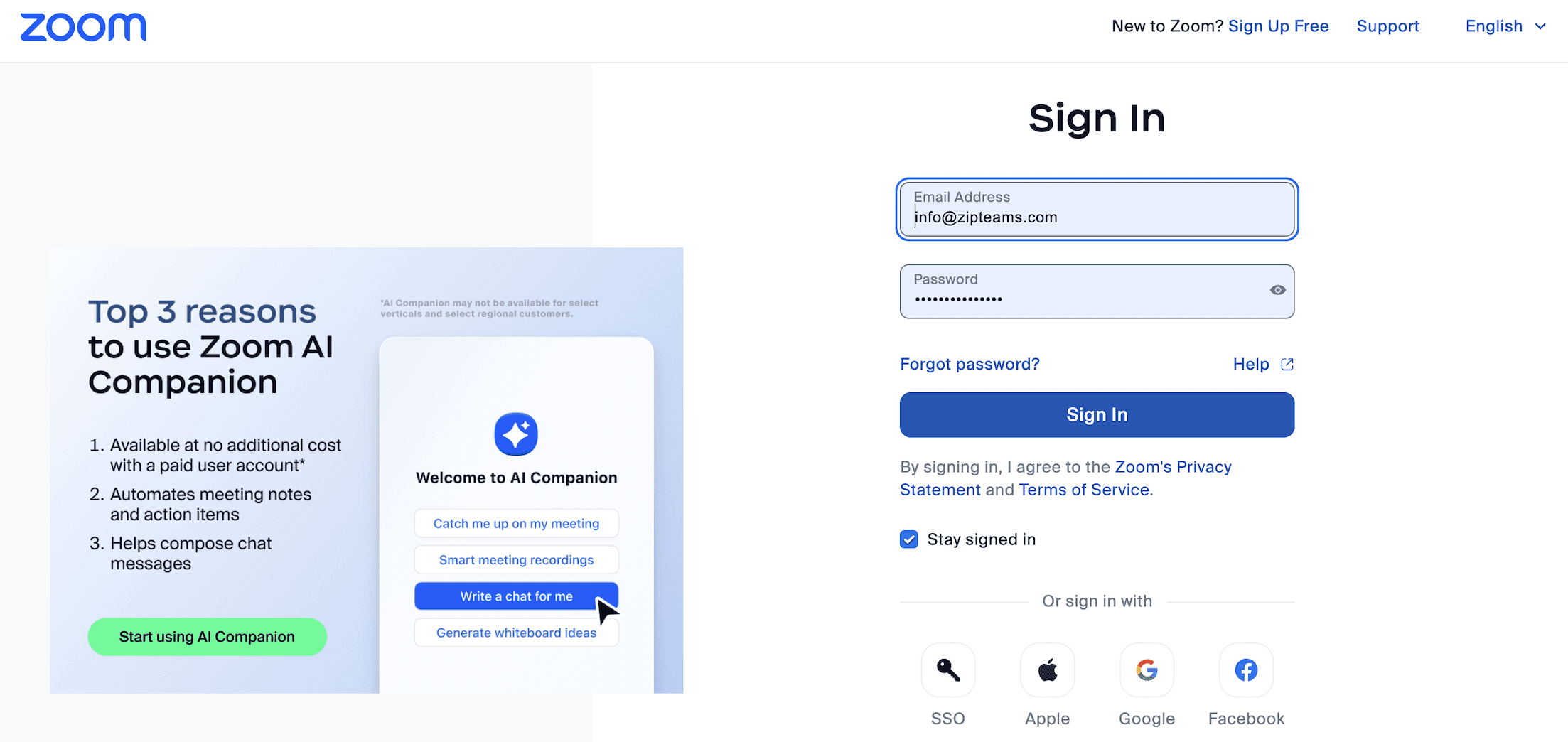
Zoom authentication page will open up. Login into your Zoom account.
Once you successfully login, you will see your Zoom account connected to Zipteams.
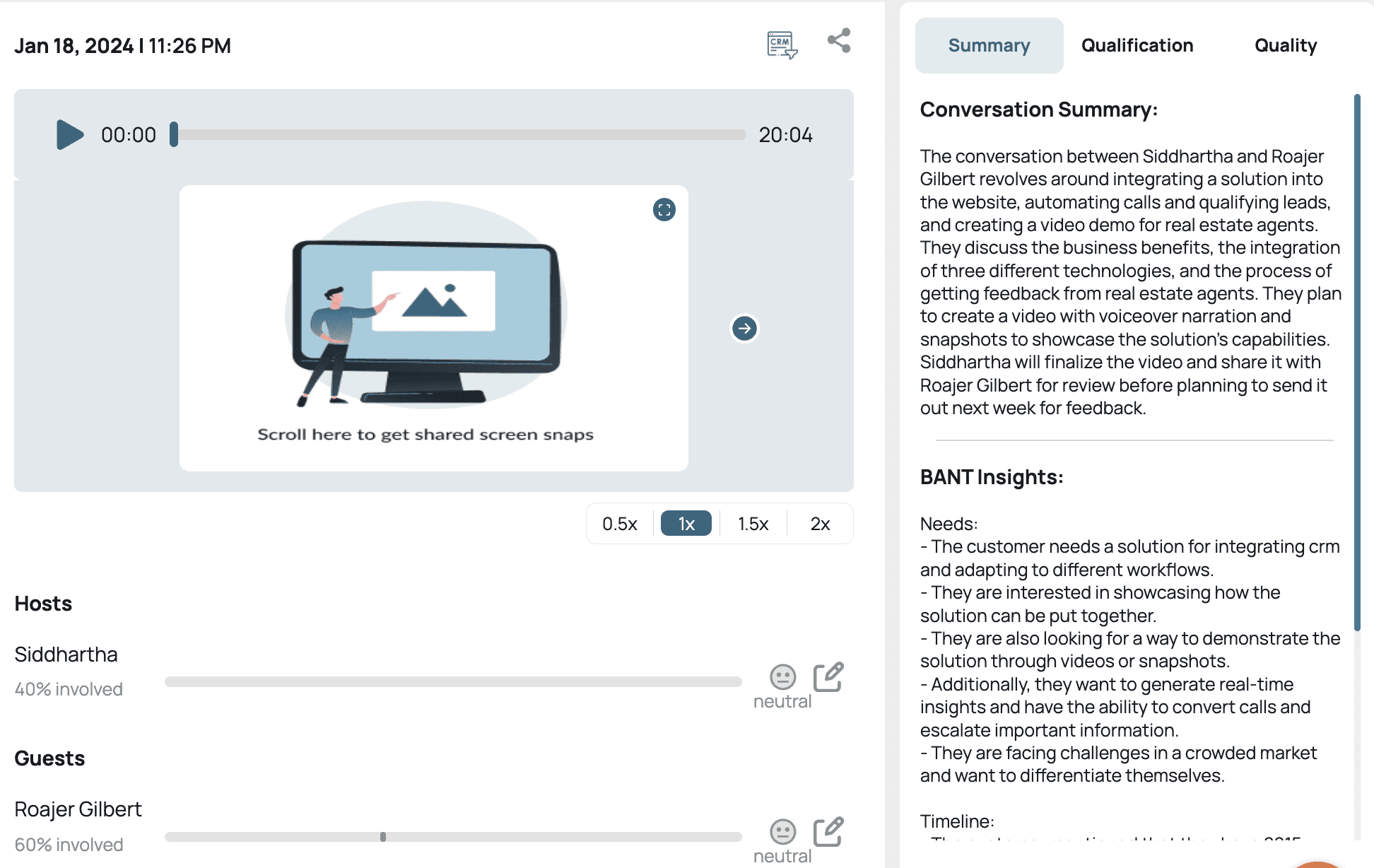
How to schedule meetings on Zoom from Zipteams dashboard
Go to My Conversation
Choose an existing contact or create a new contact
Click on Schedule Meeting against the contact and select a time
Meeting will get scheduled on your Zoom account and Zoom link will be created which you can send to your guests.

How to enable Zipteams meeting recording summaries and analytics
Go to Meeting/Call Analytics > Connect Meeting Room
Enable the settings – “Sync and analyze meeting recordings from meeting rooms”

Once enabled, from the next meeting onwards, you will be able to see the meeting recordings automatically syncing and showing up summary and analytics on your conversation detail page.
How to disconnect your Zoom account from Zipteams or remove the app from Zoom marketplace

To disconnect your Zoom account on Zipteams, you can go to Meeting/Call Analytics > Connect Meeting Room and click on Disconnect on Zoom.
To remove the Zipteams app from your Zoom account completely, login to your Zoom Account and navigate to the Zoom App Marketplace.
Click
Manage
>>
Added Apps
or search for the “Zipteams” app.
Click the “Zipteams” app.
Click
Remove
.
Contact Support
For any support, you can reach out to us on the below details:
Email: support@zipteams.com
WhatsApp Supoort: +91 9653198284
Book a meeting:
zipme.at/zipteams